

Key Takeaways
Your Tablet Is Probably Underused
For many people, a tablet spends most of its life showing streaming video from the couch. That's a perfectly fine use — but it represents a fraction of what these devices can do. A modern tablet is a capable reading device, a focused learning tool, a note-taking surface, and a communication hub, often all at once.
The gap between what tablets can do and what most people actually do with them comes down to setup and habit, not hardware. Whether you have a large-screen model or a compact entry-level device, the strategies below will help you use it with more intention. If you're still weighing whether a tablet makes sense for your situation, see our guide to tablets vs. laptops to clarify which form factor fits your life.
Optimize the Display for Reading
Long reading sessions on a poorly configured screen cause eye strain and fatigue. Most tablets include several display adjustments that make a real difference: enabling a warm-tone or night mode reduces blue light during evening reading, while raising text size and contrast improves readability without eyestrain.
Look for a "Reading Mode" or "Eye Comfort" setting in your display menu — many Android and iPadOS tablets include one. Pair this with a dedicated reading app that lets you control fonts, line spacing, and background color (cream or sepia tones are easier on the eyes than pure white). These small changes make sustained reading noticeably more comfortable.
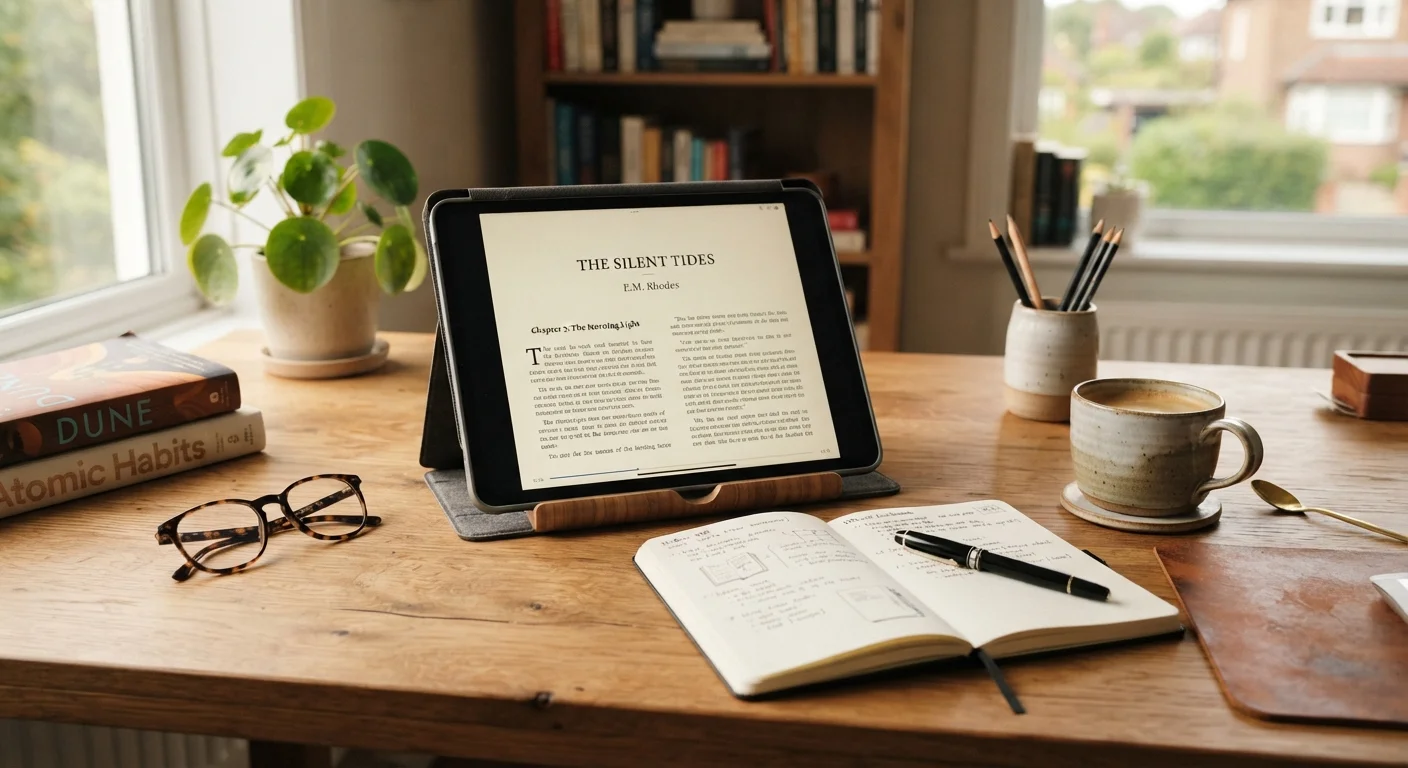
Warm display tones and adjustable fonts make long reading sessions far less tiring.
Use Built-In Focus and Do Not Disturb Modes
Tablets are communication devices, which means they constantly compete for your attention. Notifications, app badges, and alerts interrupt reading and learning at exactly the wrong moments. The solution is already built into your device.
Both Android and iPadOS include focus or screen-time management features that let you schedule quiet periods, limit which apps can send alerts, and block distracting apps during study or reading time. Setting up a simple "Reading" or "Study" focus profile — even a basic Do Not Disturb schedule — meaningfully reduces friction and helps you stay on task longer without requiring willpower alone.
A scheduled Do Not Disturb profile removes distractions without requiring constant manual effort.
Turn It Into a Serious Learning Tool
Tablets are well-suited to self-directed learning. Larger screens make video lessons easier to follow, and the ability to switch between a lesson video and a note-taking app — or to annotate a PDF textbook — creates a more active learning experience than watching on a phone.
Consider organizing a dedicated folder of learning apps: one for courses or lectures, one for notes, and one for flashcard-style review if you're working on a language, certification, or skill. The tablet's portability means you can build learning into smaller gaps in your day — a lunch break, a waiting room — without needing a desk setup. If you're interested in expanding into fitness learning too, resources in the fitness and exercise hub increasingly include video and app-based formats well-suited to tablets.
Pairing a lesson video with a note-taking app creates a more active, effective learning session.
Replace Multiple Single-Purpose Devices
Many households own a tablet alongside a dedicated e-reader, a paper planner, a desktop calendar, and a separate video-calling device. A well-configured tablet can consolidate all of these into one, reducing clutter and the cognitive load of managing multiple gadgets.
A tablet with a quality reading app can match the experience of a basic e-reader (though not the battery life of E Ink devices). A calendar app with widget support replaces a paper planner. Video calling apps work well on the larger screen, particularly when propped on a stand. Identifying which single-purpose devices your tablet could absorb is one of the fastest ways to get more value from it.
A tablet configured intentionally can replace a planner, e-reader, and video-calling screen simultaneously.
Add a Keyboard or Stylus for Expanded Capability
A tablet used only with touch input has real limitations for writing or detailed note-taking. Adding a Bluetooth keyboard — many of which are compact and inexpensive — transforms the experience for anyone who types frequently. Emails, long-form notes, and document editing all become significantly easier.
If your tablet supports a stylus (many mid-range and premium models do), handwritten notes and annotation become practical. Research consistently suggests that handwriting notes improves retention compared to typing for many people, making a stylus a meaningful learning investment, not just a novelty. These accessories are worth considering before concluding that a tablet can't do what you need — the device's baseline capability often exceeds what touch alone suggests. For a broader view of how tablets compare to laptops for this kind of work, see our tablet vs. laptop comparison.
Adding a keyboard or stylus often eliminates the limitations that make people reach for a laptop instead.
Explore Accessibility Features You May Not Know Exist
Tablets include accessibility tools that are useful for a far broader range of people than the name implies. Text magnification, high-contrast display modes, live captions for videos, and voice control are all standard features on modern devices — and they make tablets more comfortable for anyone, not just those with diagnosed needs.
Live captions, for example, are useful in noisy environments or when watching content without headphones. Voice dictation speeds up note-taking. Display magnification helps when reading complex charts or small text. Many of these features are buried in settings menus and go unnoticed. Our overview of built-in accessibility features covers the landscape in detail — most of what applies to phones applies equally to tablets.
Live captions and voice dictation are built-in tools that improve everyday usability, not just accessibility.
Getting the Most From Every Session
None of these strategies require a new device or expensive add-ons. They're adjustments to how you configure and approach the tablet you already own. For readers who want to go deeper on device maintenance and longevity, the same principles that apply in keeping a home computer running well — routine updates, storage management, and thoughtful organization — translate directly to tablets.
Keep Your Tablet Organized Like a Tool, Not a Toy
Group apps into purposeful folders — Reading, Learning, Productivity, Communication — rather than leaving everything on a single cluttered home screen. A cleaner layout reduces the temptation to drift toward entertainment when you sit down to read or study. Spending ten minutes reorganizing your home screen is a simple habit change with outsized impact on how you actually use the device.
Your tablet is, at its core, a flexible screen. What you get out of it is largely shaped by what you put in — the apps you install, the settings you adjust, and the habits you build around it. Approached with a little intention, it can quietly become one of the most useful objects in your home.