

Key Takeaways
The Accessibility Menu Most People Never Open
Buried a few taps deep in your phone's settings sits one of the most underutilized toolkits in consumer technology. Both Android and iOS include dedicated accessibility menus packed with features originally designed for users with visual, hearing, motor, or cognitive differences — but many of these tools offer genuine everyday value for nearly anyone.
Whether you're squinting at small text, watching a video in a noisy room, or handing your phone to a family member with limited dexterity, the features below are worth knowing. You don't need a specific diagnosis to benefit from them. For a broader overview of how the two major platforms differ in areas like privacy and customization, see our guide to Android vs. iOS differences.
Where to Find These Settings
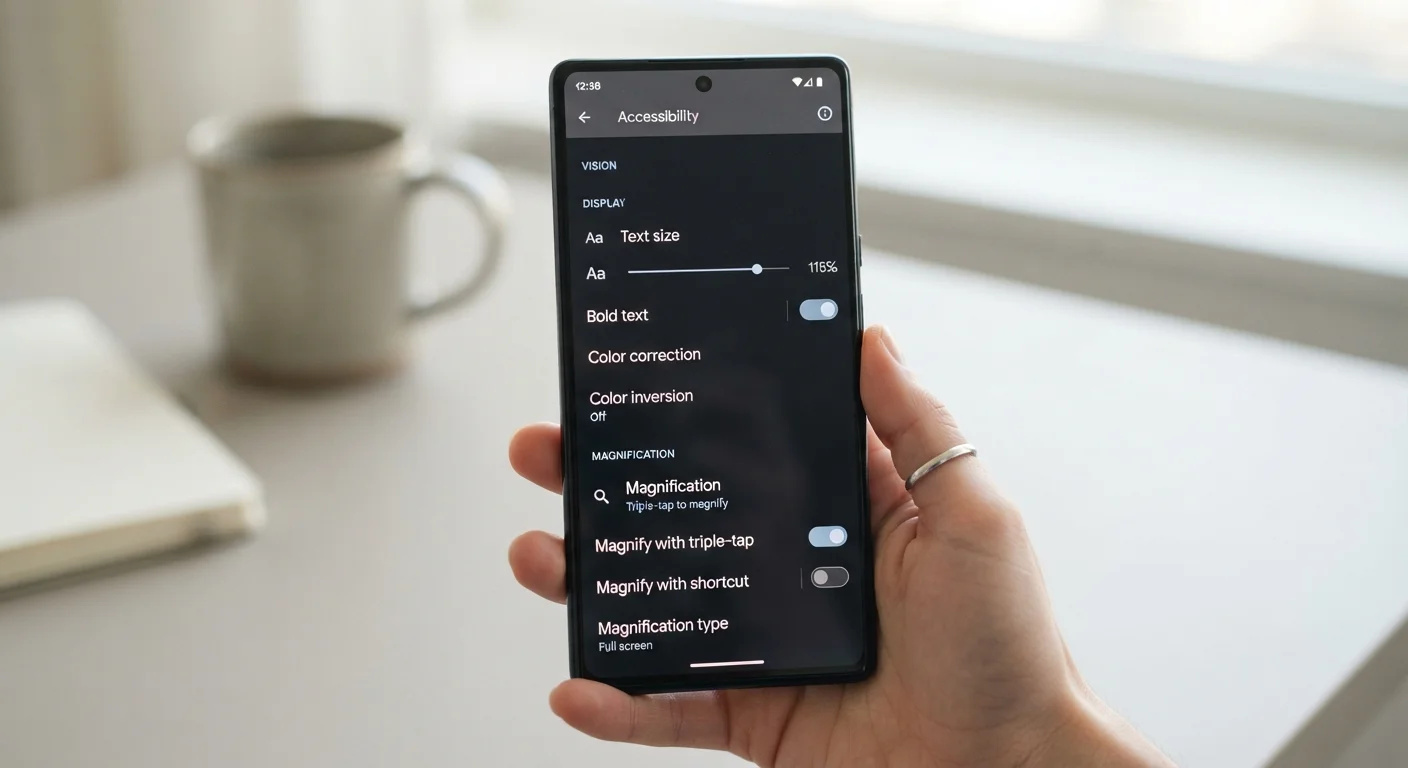
On most iPhones, accessibility features live under Settings > Accessibility. On Android devices, look for Settings > Accessibility — though the exact path may vary slightly by manufacturer and Android version. Exploring this menu takes only a few minutes and costs nothing to try.
On most iPhones, accessibility features live under Settings > Accessibility. On Android devices, look for Settings > Accessibility — though the exact path may vary slightly by manufacturer. Exploring this menu takes only a few minutes and costs nothing.
Display Magnification and Text Size
Both Android and iOS allow you to increase the base text size across the entire operating system — not just within a single app. Beyond font scaling, a magnification gesture (typically a triple-tap or pinch zoom triggered from the accessibility menu) lets you zoom into any part of the screen, including maps, photos, and fine-print menus.
This is particularly useful for users with low vision, but it's equally handy for anyone reading in bright sunlight or trying to see small UI elements on a compact phone. On iOS, Display & Text Size also includes options for bold text, button shapes, and increased contrast — each adjustable independently.
Magnification gestures work across the entire phone, not just in specific apps.
Live Captions
Live Captions (available on many Android devices and on iPhone via iOS 16 and later as Live Captions in Beta for some regions) automatically generates real-time captions for any audio playing on your phone — videos, phone calls, podcasts, or voice messages. The transcription happens on-device, meaning audio data is not sent to external servers.
This feature was designed for users who are deaf or hard of hearing, but it's just as useful for watching videos in a quiet library, following along during a noisy commute, or catching dialogue in a foreign accent. Accuracy varies by speech clarity and background noise, but for standard speech it performs reliably well.
Live Captions processes audio on-device, keeping your conversations private.
Voice Control and Voice Access
iOS's Voice Control and Android's Voice Access let you navigate your entire phone using spoken commands — tapping buttons, scrolling, typing, and switching apps — without ever touching the screen. Unlike standard voice assistants, these tools are designed for full device navigation, not just quick queries.
They're invaluable for users with limited hand mobility or repetitive strain injuries, but also genuinely useful hands-free situations like cooking, driving (where legal and safe), or holding a baby. Setup involves a short calibration process, and commands can be customized over time.
Voice Control enables full phone navigation — far beyond what a standard voice assistant offers.
Sound Recognition and Notification Alerts
Android and iOS both include a Sound Recognition feature (called Sound Recognition on iOS; available as part of accessibility features on select Android versions) that listens for specific sounds — a smoke alarm, a doorbell, a baby crying, a dog barking — and sends a visual or vibration notification to your phone.
This was built primarily for Deaf and hard-of-hearing users who can't rely on hearing alerts in their environment. However, it's also a practical safety tool for anyone wearing headphones, sleeping with their phone nearby, or working in a loud environment. Detection runs locally on the device.
Sound Recognition turns critical environmental alerts into visible or vibrating phone notifications.
Hearing Aid Compatibility and Audio Routing
Modern smartphones include Made for iPhone (MFi) hearing aid support and similar Bluetooth audio routing on Android, allowing compatible hearing aids to connect directly to the phone for calls, media, and navigation audio. This eliminates feedback and intermediary devices that older hearing aid users previously had to manage.
Even without a hearing aid, the Mono Audio and Balance settings (available on both platforms) are worth knowing: they route all audio to one earbud, useful if you have single-sided hearing loss or simply prefer to keep one ear open to your surroundings.
Mono Audio routes full stereo sound to a single earbud — practical for one-ear listening.
Switch Access for Motor Control
Switch Access (Android) and Switch Control (iOS) allow users to control their phone using one or more external switch devices — hardware buttons, head movements, or breath-activated controls. The phone scans through interactive elements on screen, and the user activates a switch to select them.
This feature is essential for users with conditions like ALS, cerebral palsy, or spinal cord injuries that limit fine motor control. It requires initial configuration but transforms the phone into a fully navigable device for people who cannot use a standard touchscreen. It also integrates with Made for iPhone accessories and third-party Bluetooth switches.
Switch Control transforms a touchscreen phone into a navigable device for users with motor limitations.
Color Filters and Reduce Transparency
For users with color blindness or certain visual processing differences, both platforms offer Color Filters that remap the display's color output — including specific options for deuteranopia, protanopia, and tritanopia (the most common forms of color vision deficiency). These filters apply system-wide.
Reduce Transparency on iOS and similar options on Android simplify visual backgrounds that can make text harder to read for some users. For those with light sensitivity, Reduce White Point dims the brightest whites beyond what standard brightness sliders allow — useful in dark environments where even minimum brightness feels too harsh.
Color filters apply system-wide and can be fine-tuned for specific types of color vision deficiency.
Making These Features Work for You
Accessibility features don't require a permanent commitment — most can be toggled on and off quickly, and many phones let you add a shortcut (such as triple-pressing the side button) to activate your most-used tools instantly. If you're also thinking about how your phone's broader settings affect your privacy and security, our complete smartphone guide covers everything from initial setup to long-term maintenance.
Add an Accessibility Shortcut for Quick Access
Both Android and iOS let you assign a hardware shortcut — such as triple-pressing the side or home button — to launch your most-used accessibility feature instantly. Once configured, you can switch a feature on or off in seconds without navigating back through the settings menu. This makes it easy to try a feature without committing to it full-time.
These tools extend naturally to tablets as well. If you use a tablet for reading, learning, or staying connected, check out getting more out of your tablet for ideas on maximizing that screen real estate with accessibility in mind.