

Key Takeaways
Before You Begin: What You Need to Know
Switching to a new phone is exciting, but rushing the process is the most common reason people lose data. Whether you're moving from one iPhone to another, one Android to another, or crossing platforms entirely, the same principle applies: back up before you do anything else.
It's also worth understanding what your cloud backup actually covers. Services like iCloud and Google Photos protect photos and contacts, but they don't automatically save everything — including some app data, SMS threads, and locally stored files. See our guide to what cloud backup saves and what it doesn't for a full breakdown before you proceed.
This guide is part of our broader complete smartphone guide, which covers everything from setup to security.
What you will need
Step-by-Step: Transferring Your Phone
Follow these steps in order. Skipping ahead — particularly the backup step — is the most reliable way to end up with missing photos, lost messages, or apps that need to be reinstalled from scratch.
Back Up Your Old Phone Completely
On iPhone: Go to Settings → tap your name → iCloud → iCloud Backup → tap Back Up Now. Wait for the backup to complete fully before proceeding.
On Android: Go to Settings → System → Backup → confirm Google One backup is on → tap Back up now. The exact path may vary slightly by device manufacturer.
Use the Built-In Migration Tool
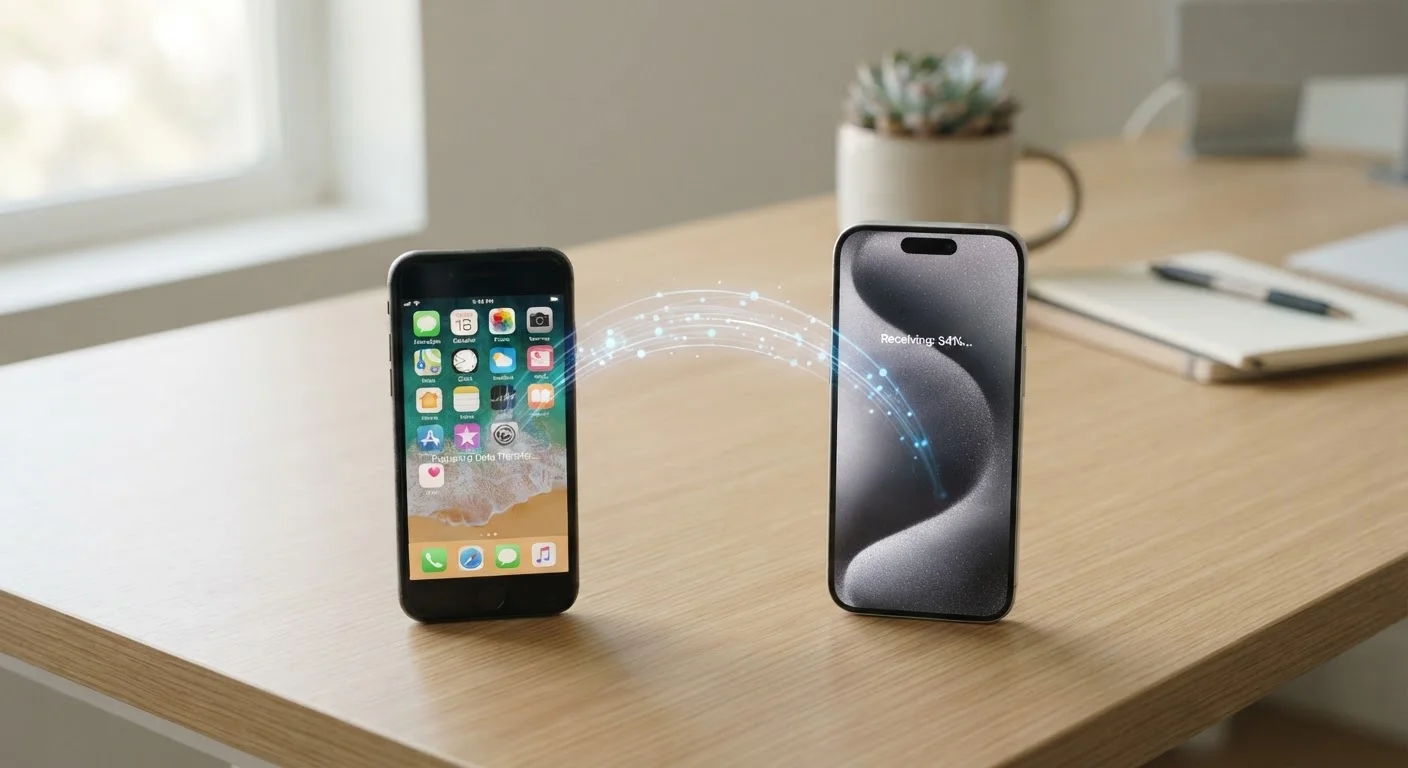
iPhone to iPhone (Quick Start): Turn on your new iPhone near your old one. A blue circle animation will appear. Follow the on-screen prompts to authenticate with your Apple ID. Choose to restore from your iCloud backup or transfer directly via device-to-device (keep both phones close together and plugged in).
Android to Android: Most Android phones display a setup screen offering to copy data from your old phone using a cable or Wi-Fi Direct. Follow the prompts and sign into your Google account to restore apps and settings.
Switching platforms (iPhone to Android or vice versa): Use Google's Switch to Android app (available on iPhone) or Apple's app (available on Android) to transfer photos, contacts, and calendars across platforms.
Verify Contacts, Photos, and Messages
Once your new phone finishes restoring, open your Contacts app and scroll through to confirm entries transferred correctly. Open your Photos app and check that recent images are present. Review your SMS and messaging apps to confirm conversation threads are intact.
If contacts appear missing, confirm they were saved to your Google or iCloud account rather than stored locally on the SIM card. SIM-stored contacts typically need to be imported separately via your phone's contacts import function.
Reinstall and Re-Log Into Apps
App icons may appear on your new phone, but some will need to finish downloading and others will require you to sign in again. Work through your most critical apps first: email, banking, health, and work tools. Have your passwords accessible — this is a good moment to confirm your password manager transferred correctly and is unlocked.
Keep Your Old Phone Until You're Confident
Don't wipe or trade in your old phone for at least 48–72 hours after completing the transfer. Use your new phone normally during that window and note anything that seems missing. Once you're satisfied everything is in place, you can safely factory reset the old device before selling or recycling it.
Transfer Speed Depends on Your Data Volume
The more photos, videos, and apps you have, the longer the transfer takes. Users with large photo libraries (10,000+ photos) or many apps should expect the upper end of the time range. Starting the transfer in the evening and letting it run overnight is a practical approach.
After the Transfer: What to Check and Fix Manually
Even a smooth transfer rarely moves every single item automatically. Once your new phone is set up, run through this checklist:
- Two-factor authentication (2FA) apps: Authenticator apps like Google Authenticator store their codes locally. You'll need to manually migrate each account or use a backup code to re-enroll your new device.
- Banking and financial apps: Most require you to log in fresh and verify your identity on a new device. Have your account credentials and a secondary verification method ready.
- App-specific settings and data: Games with local progress, note-taking apps not synced to a cloud account, and certain productivity tools may not restore fully. Check each app individually.
- Wi-Fi passwords: Android devices running Android 12 and later can share saved Wi-Fi networks via QR code. iPhones share passwords automatically between devices on the same Apple ID. Confirm your home and work networks are connected.
- Voicemail: Visual voicemail messages are carrier-dependent and often do not transfer. Save any important voicemails before handing over or wiping your old phone.
Don't Wipe Your Old Phone Too Soon
It can take several days of normal use before you notice something didn't transfer — an obscure app, a saved document, or a conversation thread. Hold onto your old phone and keep it charged for at least a few days after switching. A factory reset is permanent and cannot be undone.