

Key Takeaways
Option A
Cloud Storage
The anywhere-access, subscription-based approach.
Best for: Users who need files accessible across multiple devices and locations, or want automatic off-site backup.
Option B
Local Storage
The self-contained, one-time-cost approach.
Best for: Users who want full control over their data, fast access without internet, and no recurring fees.
If you frequently switch between devices or work on the go
Cloud Storage
Files sync automatically across phones, tablets, and computers, so you always have the latest version without manual transfers.
If you store large media libraries or work with big files offline
Local Storage
Hard drives deliver far faster read/write speeds than cloud uploads, and there are no bandwidth limits or upload wait times.
If privacy and data sovereignty are your top priorities
Local Storage
Data that never leaves your hardware cannot be accessed, subpoenaed, or affected by a third-party provider's security breach.
If you want protection against physical loss, theft, or hardware failure
Cloud Storage
Off-site cloud copies survive fires, floods, theft, or drive failures that would wipe out purely local data.
If you want maximum resilience without compromise
Cloud Storage
A hybrid setup pairs local storage for speed with cloud backup for redundancy — and many experts consider this the gold standard for data safety.
The Core Difference: Where Your Data Actually Sits
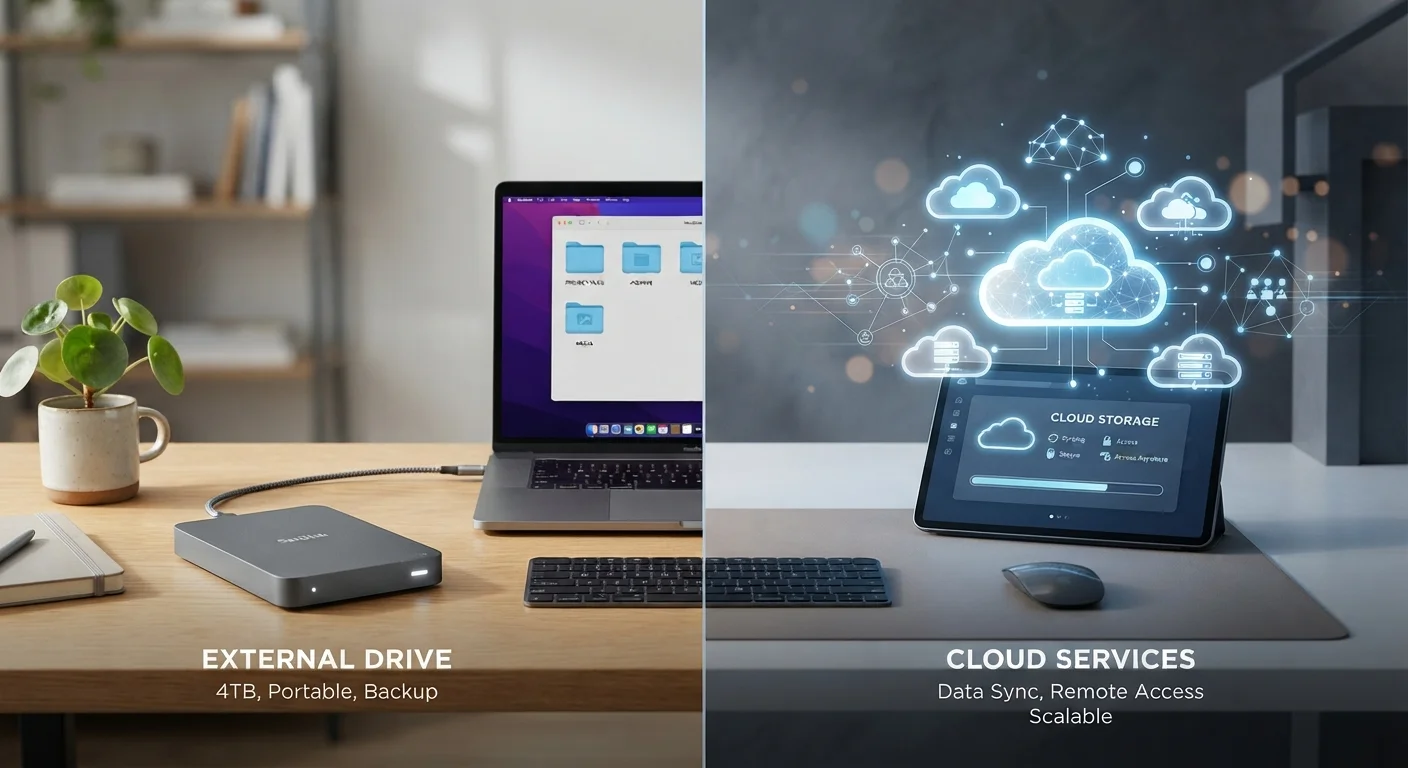
Cloud storage means your files are saved on remote servers operated by a third-party provider and accessed over the internet. Local storage means files sit on a physical device you own — a hard drive, SSD, USB drive, or NAS (network-attached storage) unit in your home.
That physical distinction drives nearly every practical difference between the two. Cloud files travel over a network every time you access them; local files are retrieved directly from hardware a few inches away. Understanding that gap helps explain why each option excels in some situations and stumbles in others.
If you've already wrestled with where to keep household paperwork, the same logic applies here — see our guide to managing household documents for a parallel look at digital versus physical filing.
| Criterion | Cloud Storage | Local Storage |
|---|---|---|
| Upfront cost | Low (subscription starts small) | Higher one-time hardware cost |
| Ongoing cost | Recurring monthly/annual fee | None after purchase |
| Access speed | Limited by internet bandwidth | Fast, direct hardware access |
| Multi-device access | Automatic, anywhere | Manual transfer required |
| Privacy control | Data on third-party servers | Data stays on your hardware |
| Risk of data loss | Provider outage, account breach | Hardware failure, physical damage |
| Internet dependency | Required for access | Not required |
| Scalability | Easy — upgrade subscription tier | Requires new hardware purchase |
Cost, Capacity, and Convenience
Local storage requires an upfront hardware purchase but has no recurring fees. A 1 TB external hard drive typically costs a one-time amount, after which the space is yours indefinitely. Cloud storage is usually subscription-based — you pay monthly or annually for a given storage tier, and your files become inaccessible if you stop paying.
For large media collections — high-resolution photos, video projects, music archives — local storage often proves more economical over time. Cloud uploads are also limited by your home internet's upload bandwidth, making large transfers slow and sometimes impractical.
Convenience points in the other direction. Cloud services sync files automatically and make them available on any device with an internet connection. If you're editing a document on a laptop and want to continue on a phone, cloud sync handles that invisibly. Local storage requires manual transfers — cables, drives, or a home network — which adds friction.
3-2-1
Gold-standard backup rule
The 3-2-1 backup strategy — three copies, two media types, one off-site — is widely recommended by data recovery professionals and IT security organizations.
~3–5 years
Typical HDD lifespan
Industry research on hard drive failure rates, including studies by cloud storage provider Backblaze, suggests mechanical hard drives have a median lifespan of roughly three to five years under regular use.
~10+ years
Typical SSD lifespan
Solid-state drives generally outlast mechanical hard drives for longevity under normal usage conditions, though all storage media eventually degrades.
Reliability, Privacy, and Risk
Both storage types carry genuine risks, just different ones. Local hardware can fail without warning — drives have a finite lifespan, and physical damage from floods, fires, or drops is always possible. A single local copy with no backup represents a significant risk. That said, you retain complete control: no company can change its terms, suffer a breach, or shut down and take your data with it.
Cloud providers use redundant data centers designed to prevent data loss, but they are not risk-free. Accounts can be compromised, providers can change pricing or discontinue services, and your data resides on servers subject to the provider's legal jurisdiction. For sensitive files — tax records, medical documents, personal photos — some users are uncomfortable with third-party access, even when providers offer encryption.
For phone users, it's also worth understanding what cloud backup does and doesn't cover — our article on what cloud backup actually saves on phones walks through the gaps in automatic services.
Encryption Matters for Both Storage Types
Cloud providers vary widely in how they handle encryption — some encrypt data only in transit, others encrypt it at rest, and a smaller number offer end-to-end encryption where only you hold the key. Local storage is not automatically encrypted either; enabling full-disk encryption (available on most modern operating systems) adds a meaningful layer of protection if a device is lost or stolen. Before choosing either option for sensitive files, check what encryption is actually applied and who controls the decryption key.
Building a Strategy That Works for You
For most households, the most resilient approach combines both storage types. Keep working files and primary data on local storage for speed and control. Maintain a cloud backup of critical files for off-site redundancy. This mirrors the professional IT principle of the 3-2-1 rule: three copies of data, on two different media types, with one copy stored off-site.
If you're unsure how much local storage you actually need, understanding what's consuming space on your existing devices is a useful starting point. Our breakdown of what fills up phone storage shows how quickly photos, apps, and cached data accumulate — the same categories apply to computers.
Ultimately, neither cloud nor local storage is a universal answer. Evaluate your access patterns, the sensitivity of your files, your internet reliability, and your tolerance for monthly costs or hardware maintenance. A deliberate, mixed approach almost always outperforms relying on either option alone.