

Key Takeaways
Smartphone Storage
Smartphone storage refers to the built-in space your phone uses to hold everything — the operating system, apps, photos, videos, music, documents, and invisible background data like caches and logs. Unlike RAM (which handles active tasks), storage is permanent until you delete something. Most phones display storage as a total capacity (such as 128 GB) and break it down into categories in your settings.
Modern phones use NAND flash memory for storage — specifically UFS (Universal Flash Storage) on Android and a similar proprietary format on iPhones. Available space is always less than advertised capacity because the operating system and firmware pre-occupy a portion at the factory.
How Phone Storage Is Divided
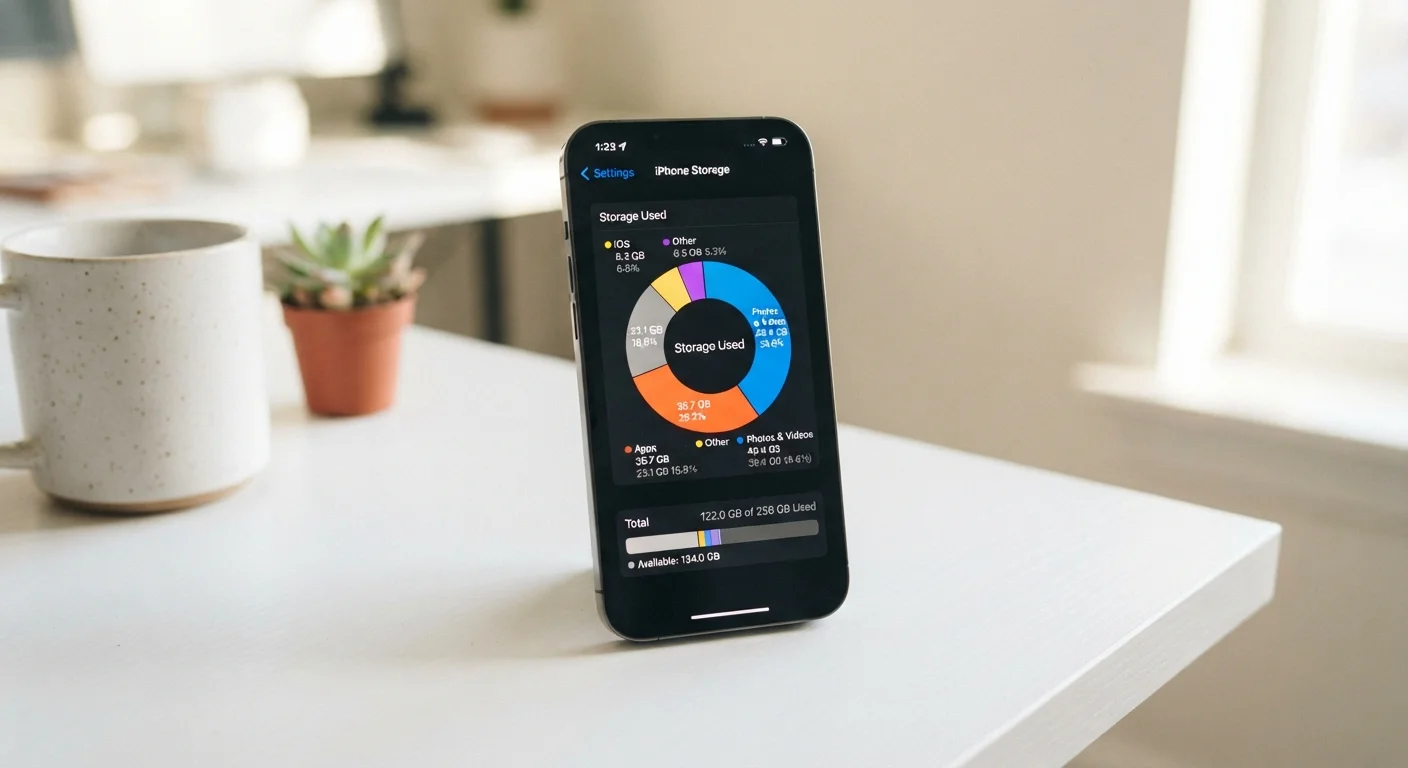
When you open your phone's storage settings, you'll typically see a bar divided into color-coded segments. Each segment represents a different category of data. Understanding what each one means helps you make smarter decisions about what to keep, move, or delete.
The main categories you'll encounter are:
- Photos & Videos: Usually the largest single category for most users. A single 4K video can consume several gigabytes; a library of thousands of photos compounds quickly.
- Apps: This covers the app itself plus any data it stores locally — downloaded maps, offline music, game levels, and saved login states.
- Media & Downloads: Includes music files, podcasts, PDFs, and files you've manually downloaded or received via messages.
- Messages: Text messages look tiny, but years of group chats with attached photos and videos can consume hundreds of megabytes or more.
- System / OS: The operating system itself — iOS or Android — plus firmware and pre-installed apps. For more on what the OS actually manages, see what mobile operating systems actually do.
- Other / System Data: A catch-all for caches, logs, and residual files. Often frustratingly large and partially outside your direct control.
128 GB
Common baseline storage on modern mid-range phones
As of recent device generations, 128 GB has become a standard starting point, though usable space is typically 10–15 GB less after system overhead.
~400 MB
Space consumed by one minute of 4K/60fps video
File sizes vary by phone model and codec, but high-resolution video is the fastest way to fill available storage on any device.
10–20%
Storage lost to OS and system files from factory
The operating system, firmware, and pre-installed software typically consume a significant portion of advertised capacity before a user ever sets up the device.
The Hidden Culprits: Cache, Logs, and Leftover Data
Cache files are temporary data apps store to load faster next time — think of them as shortcuts. A streaming app might cache recently played content; a browser caches website images so pages reload quicker. Individually, these files are small. Collectively, after months or years of use, they can consume several gigabytes.
Logs are records the system and apps keep to diagnose problems. They're rarely accessible to users but quietly accumulate in the background.
Leftover data is perhaps the most overlooked culprit. When you delete an app, not all of its associated files are always removed — particularly on Android, where some apps leave behind preference files, databases, or cached content in shared storage folders.
Check Storage Use Before Deleting Anything
Before clearing cache or removing apps, open Settings and review the full storage breakdown. On iPhone, go to Settings > General > iPhone Storage; on Android, go to Settings > Storage. Knowing which categories are largest helps you target the biggest gains first rather than spending time on minor files.
On Android, navigate to Settings > Storage > Apps to view cache sizes per application and clear them individually. On iPhone, the operating system automatically purges app caches when storage runs low, but you can manually free space by offloading an app (which removes the app but keeps its data) or deleting it entirely.
Photos and Videos: The Storage You Can Actually Reclaim
For most smartphone users, the camera roll is where the real storage problem lives. Smartphones now shoot at resolutions and video quality that would have required professional equipment a decade ago — and file sizes reflect that. A single minute of 4K video at 60 frames per second can occupy 400 MB or more.
The most practical solution for many people is offloading photos to cloud storage. Services like iCloud Photos and Google Photos can store your full library remotely while keeping lower-resolution previews on your device, freeing substantial space. However, it's worth understanding what cloud backup actually saves and what it doesn't before relying on it entirely.
For a broader look at where your files should live long-term, cloud storage vs. local storage covers the trade-offs clearly.
Other practical steps include:
- Reviewing your camera roll for duplicate shots and burst-mode sequences, which pile up unnoticed.
- Deleting screenshots you no longer need — these accumulate faster than most users realize.
- Checking your messaging apps, where received photos and videos are stored separately from your main camera library.
Making Storage Work Smarter Going Forward
Once you've audited and cleared what you can, a few habits will slow the accumulation of storage clutter significantly.
Regularly reviewing your installed apps is one of the highest-impact habits. Apps you haven't opened in months occupy both storage and, in some cases, continue running background processes that affect battery life — a connection explored in why your phone battery drains faster than it used to.
If you're planning to upgrade to a new device, managing your storage beforehand simplifies the transition considerably. Transferring everything to a new phone is easier when your existing library is already organized and backed up.
For a comprehensive resource covering storage alongside all other aspects of smartphone use, the complete smartphone guide is a useful reference.
Storage and Security Are Connected
Keeping your phone's storage organized isn't just about space — outdated apps that sit unused are also potential security vulnerabilities. Apps that are no longer updated by developers may contain unpatched weaknesses. For a broader look at protecting your device, see keeping your phone secure without becoming a tech expert.