

Key Takeaways
Laptop Specifications
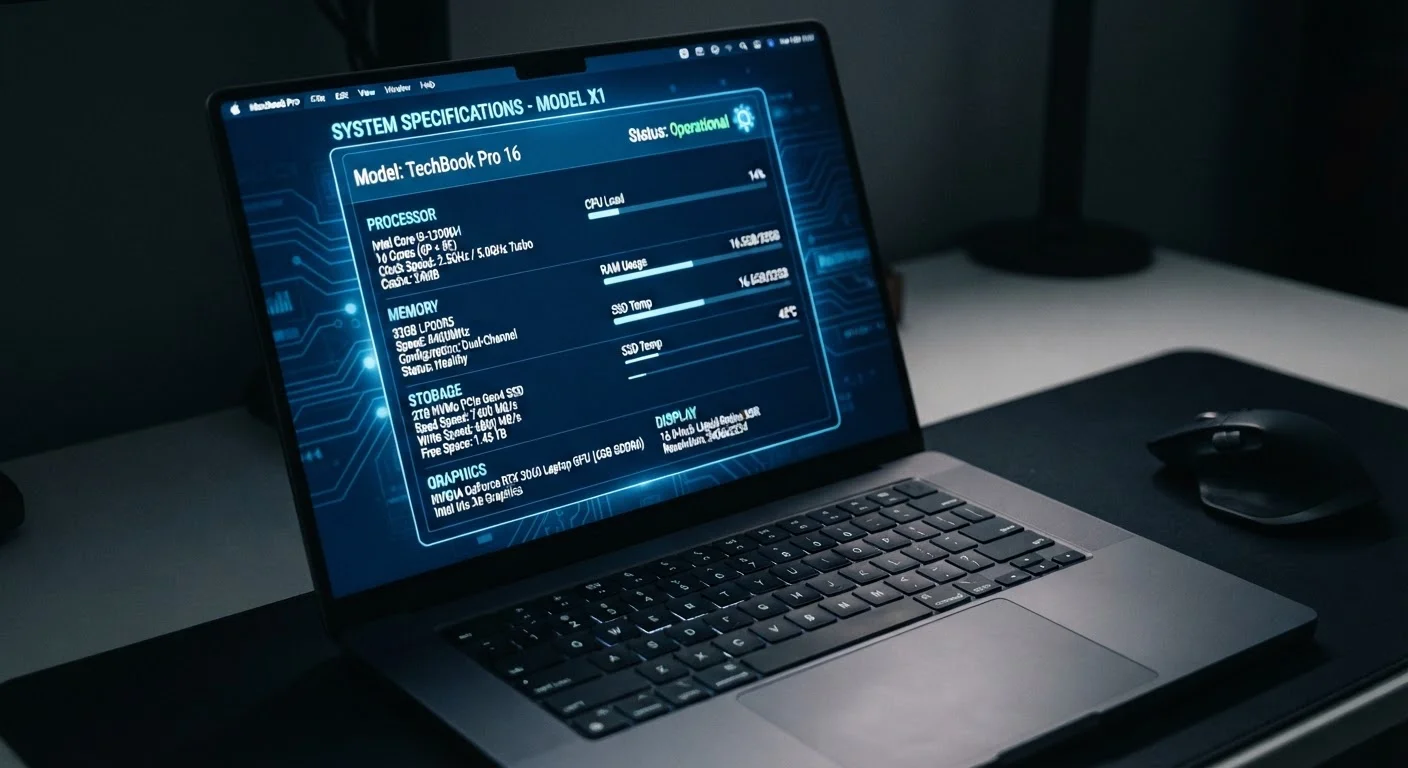
Laptop specifications are the technical measurements that describe a computer's core hardware components — including the processor, memory, and storage. These numbers tell you how fast the machine can work, how many tasks it can handle at once, and how much data it can hold. Reading specs correctly helps you match a laptop to what you actually plan to do with it.
Specs describe theoretical capacity; real-world performance also depends on operating system efficiency, thermal design, and software optimization.
The Processor: Your Laptop's Engine
The CPU (Central Processing Unit) is the component that actually executes every instruction your laptop carries out — opening apps, loading web pages, running calculations. When a spec sheet lists something like a processor with multiple cores and a clock speed measured in GHz (gigahertz), it's describing how many tasks the chip can handle simultaneously and how fast it cycles through instructions.
Cores are independent processing units within one chip. A dual-core processor handles two streams of work at once; a quad-core handles four. For most everyday use — browsing, streaming, document editing — a modern four-core processor is more than sufficient. Video editing, 3D rendering, or complex data work benefit from higher core counts.
Clock speed, measured in GHz, reflects how many operations a core performs per second. Higher clock speeds generally mean faster single-task performance, though modern chip architecture makes direct comparisons between different chip families more nuanced.
Match Specs to Your Actual Workload
Before comparing spec sheets, write down the three or four things you do most on a computer. Light users — email, streaming, documents — rarely need top-tier processors or large RAM. Identifying your real needs first prevents overspending on specs that deliver no practical benefit for your usage pattern.
If you want to understand how display specs relate to your overall laptop experience, our explainer on screen size, resolution, and refresh rate covers the display side of the equation.
RAM: How Much Can Your Laptop Juggle?
RAM (Random Access Memory) is your laptop's short-term working memory. When you open a browser with a dozen tabs, a spreadsheet, and a video call simultaneously, all of that active data lives in RAM. The more RAM a laptop has, the more it can hold in active use before it starts slowing down or relying on slower storage to compensate.
RAM is measured in gigabytes (GB). Common amounts in current laptops range from 8GB on entry-level machines to 16GB or 32GB on mid-range and higher-end models. RAM speed (measured in MHz) also appears on spec sheets, but for most users the total amount of RAM has a more noticeable impact than speed alone.
8GB
Minimum RAM for comfortable multitasking
Industry guidance from major chip and OS developers consistently cites 8GB as the practical floor for smooth everyday computing in current operating systems.
~5×
Speed advantage of SSD over HDD for file access
General benchmarking across storage types shows modern NVMe SSDs can deliver sequential read speeds roughly five times or more faster than traditional spinning HDDs.
256GB
Common entry-level SSD storage capacity
Most entry-level laptops ship with 256GB SSDs, which comfortably accommodates an operating system, standard applications, and a moderate personal file library.
An important practical note: RAM is often soldered to the motherboard in modern slim laptops, meaning it cannot be upgraded after purchase. Choosing the right amount upfront is therefore more important than it used to be.
Storage: SSD vs. HDD and Why It Matters
Storage is where your files, applications, photos, and operating system live permanently — even when the laptop is powered off. Two main types appear on spec sheets:
- SSD (Solid State Drive): Uses flash memory chips with no moving parts. Fast startup times, quick file access, and more durable for portable use. The vast majority of current laptops include SSDs.
- HDD (Hard Disk Drive): Uses spinning magnetic platters. Slower than SSDs but historically cheaper per gigabyte. Increasingly rare in laptops; more common in external drives.
Storage capacity is measured in gigabytes (GB) or terabytes (TB) — one terabyte equals roughly 1,000 gigabytes. A 256GB SSD is a common baseline; 512GB gives more comfort for photos and software; 1TB suits users with large media libraries or creative project files.
Specs Don't Tell the Whole Story
Two laptops with identical specs can perform differently depending on cooling design, software optimization, and build quality. Spec sheets are a useful starting framework, but they describe theoretical capability rather than guaranteed real-world experience. Reading independent technical reviews alongside spec comparisons provides a more complete picture.
For a broader view of how hardware choices affect the overall form factor decision, the comparison of desktops vs. laptops provides useful context alongside specs.
Putting It All Together: Reading a Spec Sheet Practically
When you look at a laptop listing, the key specs — CPU, RAM, and storage — each answer a different question about what the machine can do. Think of them as a team: the processor handles speed of thinking, RAM handles breadth of multitasking, and storage handles capacity for keeping things.
It also helps to think about maintaining your laptop's performance over time — the right specs at purchase, combined with good habits, extend a machine's useful life considerably. And if you want to understand the full software environment your hardware runs within, our plain-language guide to operating system terminology demystifies what happens once the hardware is running.