

Key Takeaways
Summary
18 items · 15–30 minutes
Why App Permissions Deserve a Second Look
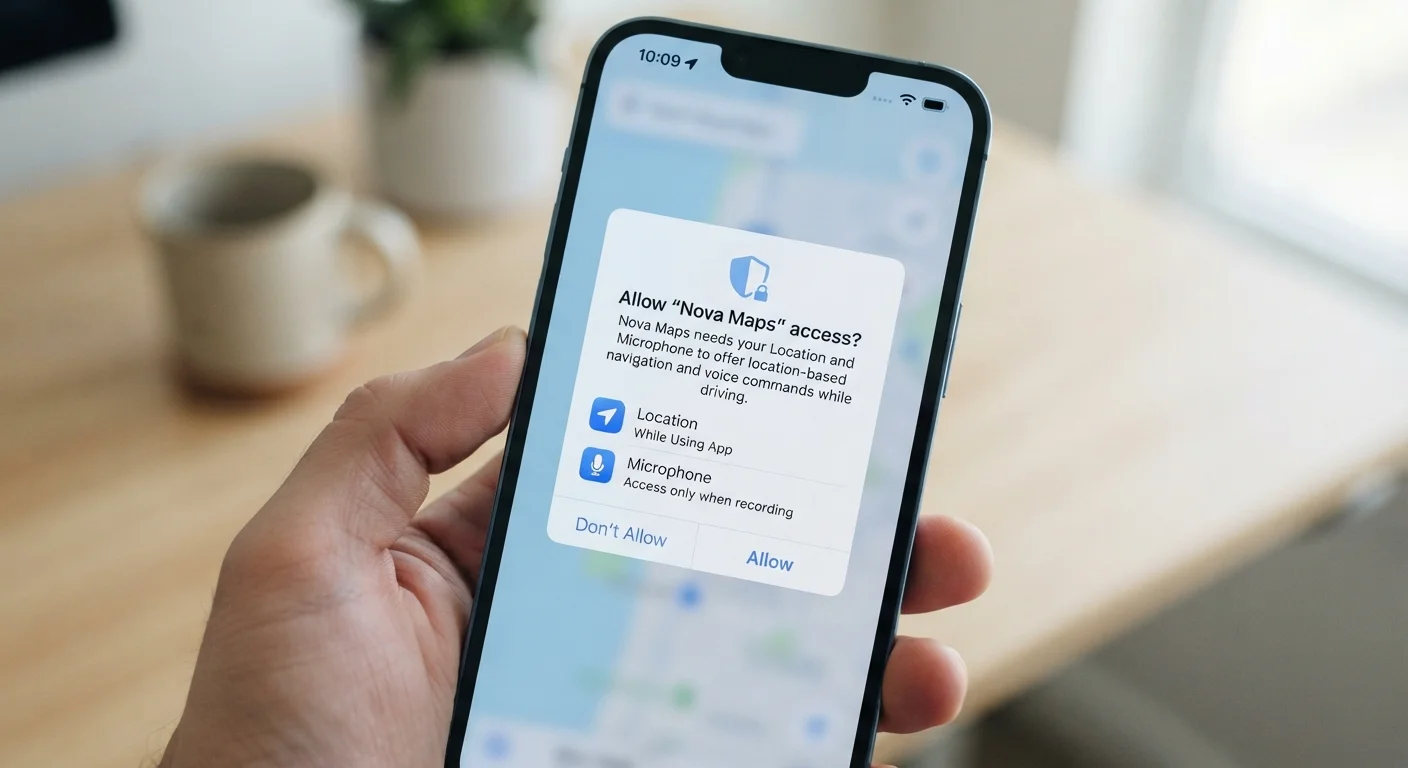
When you install an app, a quick tap on "Allow" feels routine. But those permission prompts represent real access to your device's hardware and personal data — your location, camera, microphone, contacts, and more. Many apps request permissions that are genuinely necessary; others ask for far more than their core function requires.
Understanding what each permission category actually does — and auditing which apps hold which access — is one of the most effective, low-effort privacy habits you can build. As our guide on keeping your phone secure without becoming a tech expert notes, app permissions sit alongside PINs and two-factor authentication as a foundational layer of mobile security.
This checklist walks you through the permission categories that warrant the closest scrutiny and gives you a repeatable process for auditing them on both Android and iOS.
iOS Settings App (Privacy & Security)
Provides a per-permission view of every app with access, allowing you to review and revoke individually.
Android Settings App (Privacy > Permission Manager)
Lists all permission categories and shows which apps hold each type of access on Android devices.
Google Play / Apple App Store Listing
Shows the data safety or privacy nutrition label for an app before or after installation.
Permission Categories Worth Understanding
Not all permissions carry the same weight. Before you start auditing, it helps to know what you're looking at.
- Location: Can be "precise" (GPS-level) or "approximate." Precise location is rarely needed by apps that aren't navigation or local-search tools.
- Microphone: Allows the app to record audio at any time it's active. Voice assistants and video call apps need this; most others don't.
- Camera: Grants the ability to capture photos or video. A QR scanner needs it; a calculator app does not.
- Contacts: Exposes your entire address book. Messaging apps often have a legitimate need; games rarely do.
- Bluetooth: Used increasingly for proximity tracking and ad targeting, not just connecting peripherals.
- Tracking (iOS) / Ad ID (Android): Allows the app to link your activity across other apps and websites for advertising purposes.
If you're also thinking about how connected home devices handle audio data, see our piece on what smart speakers actually do with your audio for related context.
Revoking Permissions May Limit Some Features
Removing a permission won't typically break an app's core function, but it may disable specific features — for example, revoking location from a food delivery app means you'll enter your address manually. Test after revoking to confirm the app still meets your needs. If an app stops working entirely when a seemingly unrelated permission is revoked, that itself is a signal worth noting.
Your App Permissions Audit Checklist
Work through these steps on your device. The exact menu names vary slightly by operating system version, but the paths below reflect the general structure of current iOS and Android settings.
Before You Start
Auditing Location Access
Auditing Microphone and Camera
Auditing Contacts, Bluetooth, and Tracking
Final Review and Ongoing Habits
Some Permissions Cannot Be Partially Restricted
On older Android versions and some manufacturer skins, the permission controls may be less granular than on stock Android or iOS. If your device doesn't offer "Approximate Location" or "While Using" options for certain apps, consider whether that app is worth keeping. Keeping your OS updated is the most reliable way to access the most current privacy controls.
For a broader look at how iOS and Android differ in their approaches to privacy controls, our comparison of Android vs. iOS real differences covers the key distinctions in daily use.